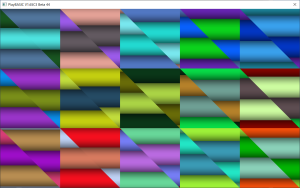
This demo shows how **palette mapping** works in PlayBASIC with sprites.
Instead of giving each pixel its own colour, the sprite image only stores **palette indexes**. A separate palette array holds the actual colours. By changing which part of the palette the sprite looks at, the colours of the sprite can be animated in real time — without redrawing the sprite itself.
Here’s what happens step by step:
1. A colour palette is created using sine waves, making smooth bands of colours.
2. An image is built that uses this palette.
3. Multiple sprites are created from that image and displayed on the screen.
4. Each frame, the program shifts the part of the palette each sprite uses.
5. This makes the sprites look like they are filled with flowing, animated colours, even though the sprite image never changes.
This technique was widely used in classic 2D games and demos to create **cheap, smooth animations** without needing lots of CPU or memory.
Instead of giving each pixel its own colour, the sprite image only stores **palette indexes**. A separate palette array holds the actual colours. By changing which part of the palette the sprite looks at, the colours of the sprite can be animated in real time — without redrawing the sprite itself.
Here’s what happens step by step:
1. A colour palette is created using sine waves, making smooth bands of colours.
2. An image is built that uses this palette.
3. Multiple sprites are created from that image and displayed on the screen.
4. Each frame, the program shifts the part of the palette each sprite uses.
5. This makes the sprites look like they are filled with flowing, animated colours, even though the sprite image never changes.
This technique was widely used in classic 2D games and demos to create **cheap, smooth animations** without needing lots of CPU or memory.